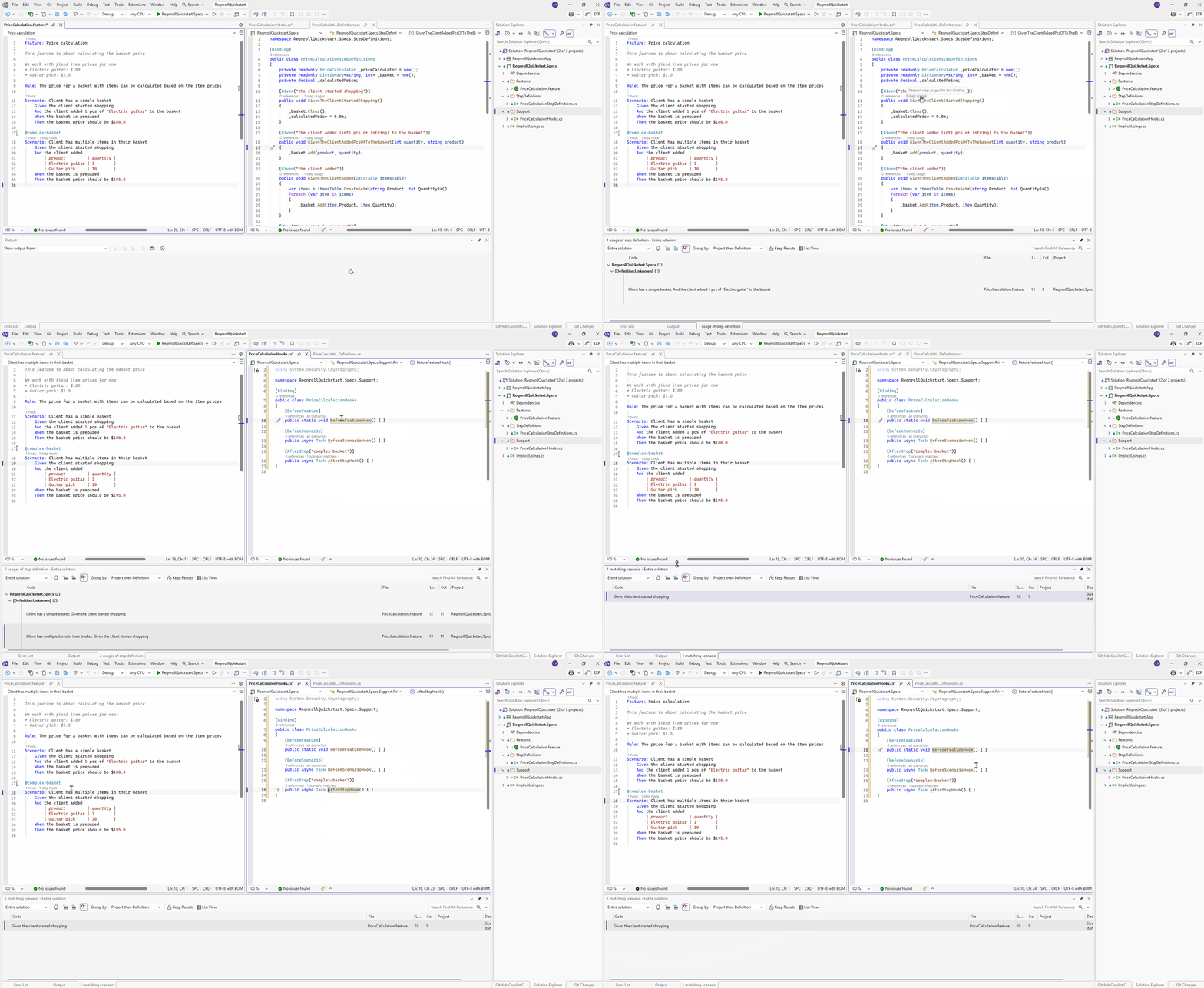
Code Lens — Step & Hook Usage Counts
Three related CodeLens annotations show live binding match counts inline, above the relevant line, without needing to run Find Usages manually:
Step usage counts (C# side)
Each C# step binding method ([Given]/[When]/[Then]) shows an inline
annotation above the method declaration reporting how many .feature steps
currently match it (e.g. “3 usages”). Clicking it opens the same results as
Find Step Definition Usages.
Hook match counts, by feature/scenario/step (.feature side)
Above each Feature:, Scenario:, and Scenario Outline: line, a lens
reports the count of hooks that apply at that level given the tags in
scope — e.g. how many [BeforeScenario]/[AfterScenario] hooks apply to a
given scenario. A second lens on the Scenario: line reports the
step-level hook count ([BeforeStep]/[AfterStep]/etc.) that applies to
every step in that scenario. Clicking either lens opens the same picker as
Hook Navigation, filtered to
that lens’s own hook set.
Hook match counts, by hook binding (C# side)
The reverse direction: each hook-binding C# method
([BeforeScenario]/[AfterScenario]/[BeforeStep]/[AfterStep]/etc.)
shows a lens with the count of features/scenarios it currently matches,
given its scope/tag expression. Unlike the other lenses on this page, a
hook with zero matches still shows “0 scenarios matched” rather than
being hidden — a zero-match hook (e.g. a stale tag expression) is usually
exactly what you need to notice. A hook with no [Scope] at all shows the
static label “all scenarios” instead of a count, since it matches
everything. Clicking the lens shows a results list of the matching scenarios.
Note
If a .feature file is linked into more than one project, its hook-match lenses always reflect
the file’s home project (wherever it physically lives on disk), regardless of which project’s
node you opened it from. See Troubleshooting.
From a csharp binding file, clicking on the ‘step usage’ or ‘scenario matched’ Code Lens will display matches in a results window from which you can navigate to one of the matched feature elements. From a feature file, clicking on a ‘hook’ Code Lens will result in a pop-up with the matching binding methods. Double clicking an entry will navigate you to that method.