Rename Step
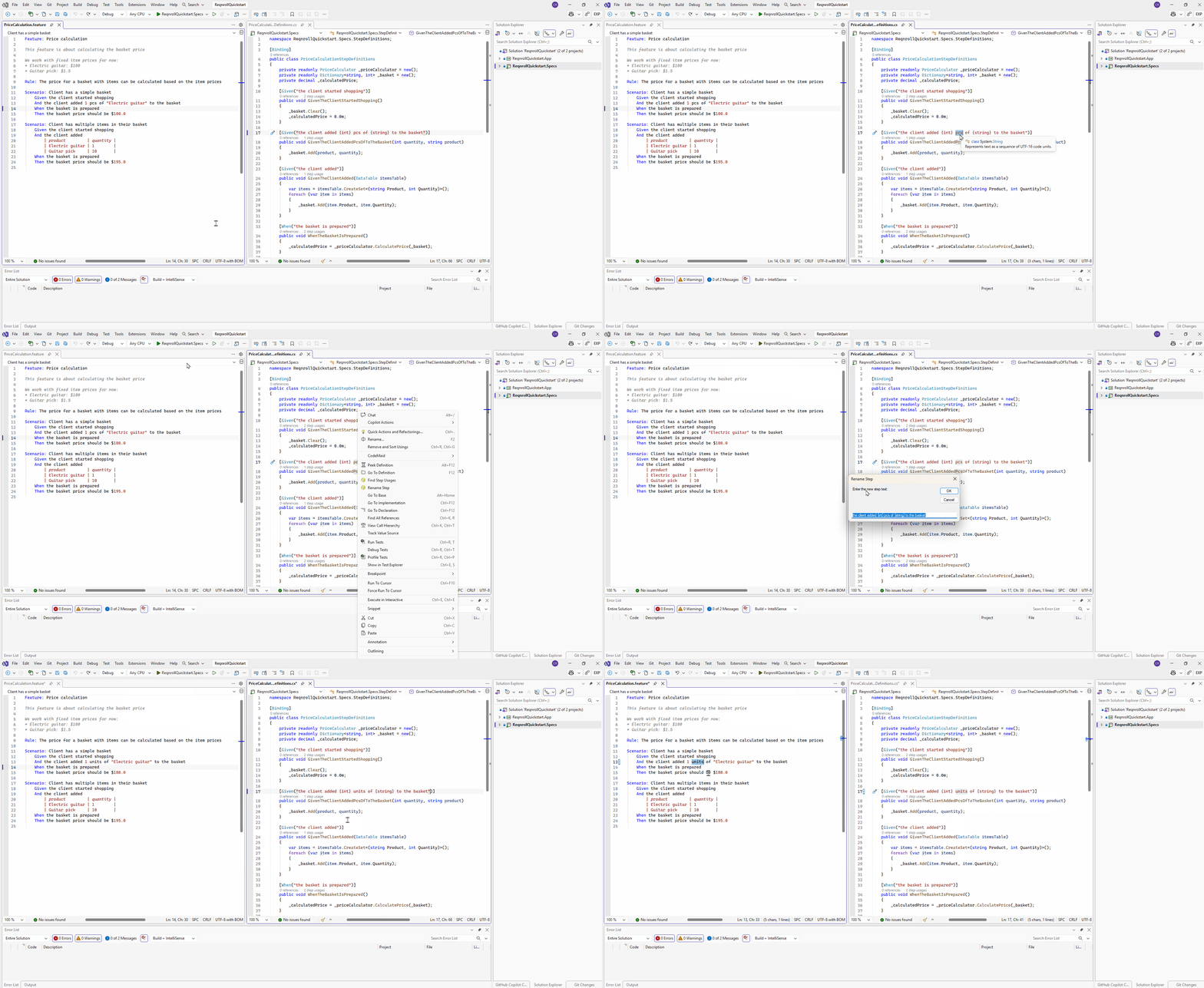
Renaming a step’s text — from either the .feature file step line or the
C# [Given("...")]/[When("...")]/[Then("...")] attribute string —
updates every occurrence across the workspace: the attribute string in the
binding class, and every matching step in every .feature file.
Place the cursor on the step (in a .feature file) or the attribute string
(in a .cs file) and invoke the standard Rename gesture (F2). This
handles the common, unambiguous case directly.
Renaming from the feature file

Renaming from the binding expression
Renaming an ambiguously bound step
If a binding method has more than one candidate attribute, use right-click → Rename Step… (in the Reqnroll group of the editor context menu) instead — it opens a dialog with a picker to choose which binding to rename.

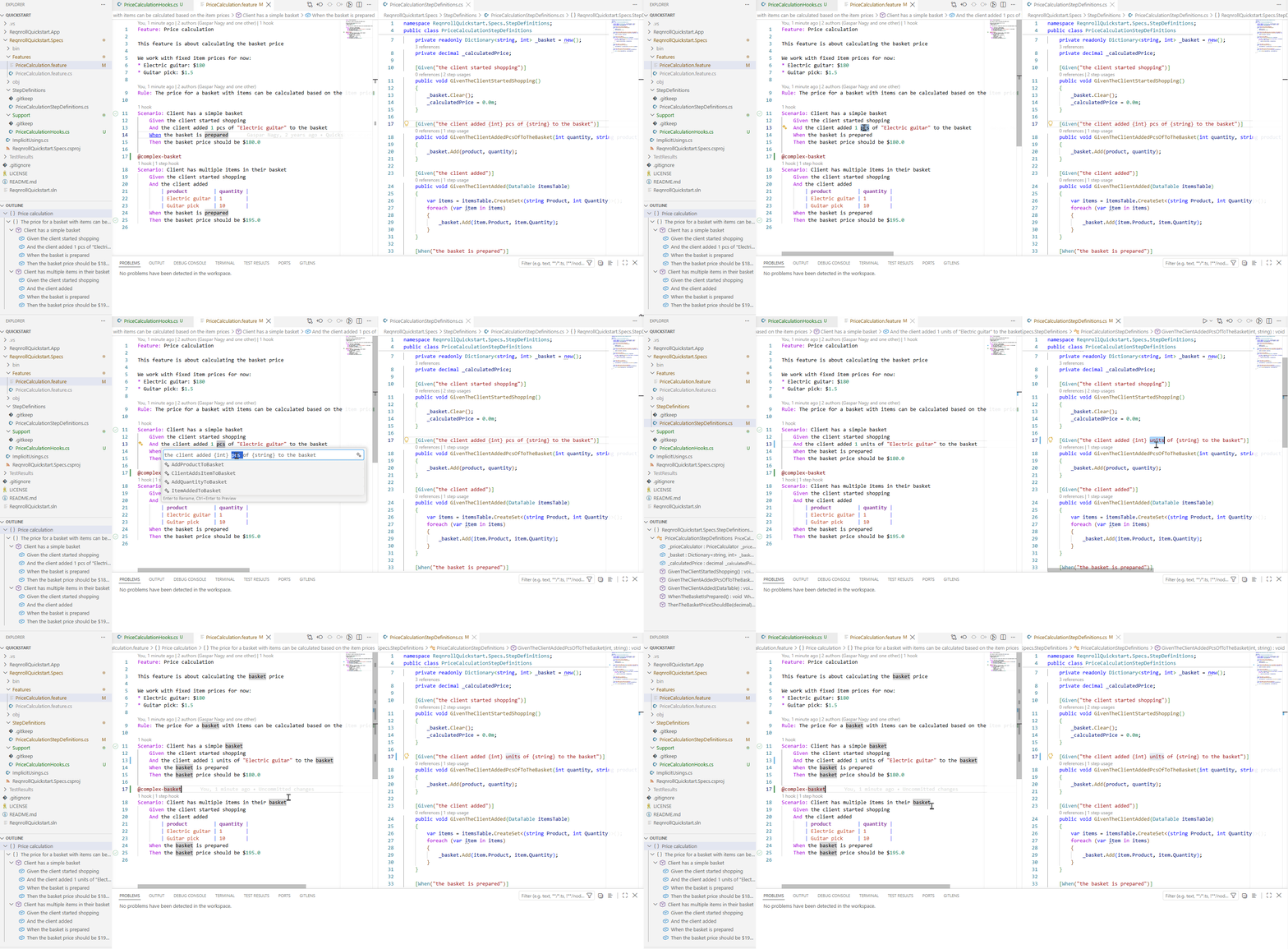
Place the cursor on the step (in a .feature file) or on the attribute string (in a .cs
file) and press F2. You can also use right-click → Reqnroll: Rename Step… or the
Command Palette in either file type.
Renaming from the feature file
Renaming from the binding expression

Renaming an ambiguously bound step
If the step matches more than one candidate binding attribute, a Quick Pick asks which one you mean before the rename prompt appears.
If the language server rejects the rename for a reason you can fix (for example a changed parameter count), the reason is shown in a modal dialog.
On the
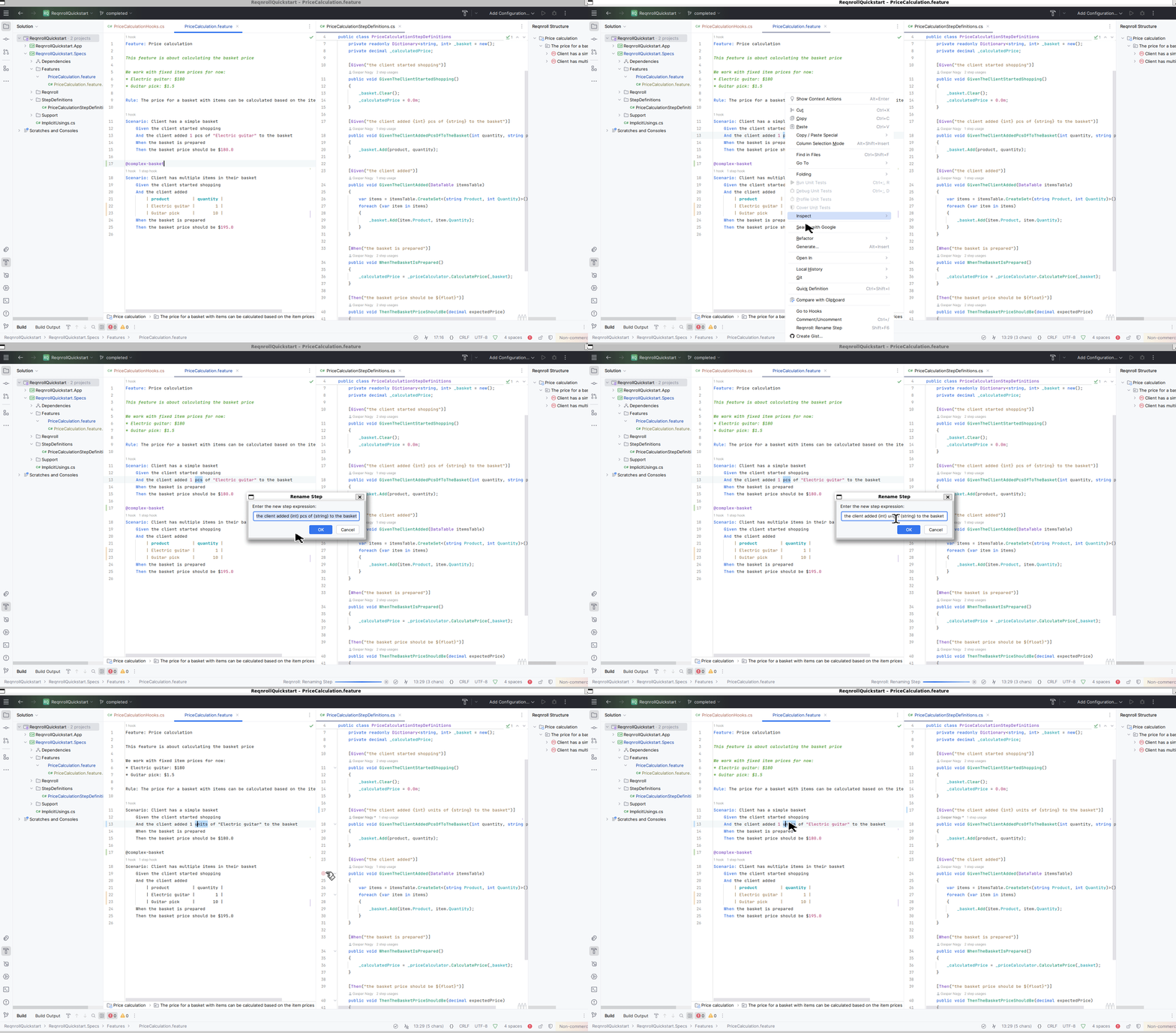
.featurestep line: press Shift+F6, or right-click → Reqnroll: Rename Step….On the C# attribute: right-click → Reqnroll: Rename Step… — it sits in the Reqnroll group of the context menu, set off by separators from Rider’s native “Rename” entry, and the
Reqnroll:prefix marks it as ours, since native Shift+F6 stays bound to ordinary C# symbol rename here.
Both surfaces handle disambiguation via a picker when the binding has more than one candidate attribute.
Renaming from the feature file
Renaming from the binding expression

Renaming an ambiguously bound step
